Three-Way Folder Synchronization
Not in DeltaWalker Classic Free. Three-way comparison and automatic synchronization are part of the Pro and Oro editions.
Manual Three-Way Synchronization
Synchronization using Copy, Move, and Delete
You can reach any synchronization result with the basic operations Copy, Move, and Delete.
In a three-way folder comparison, the copy and move commands name the hierarchies involved: First Modified, Reference (the ancestor, in the middle), and Second Modified. For example, to bring the changes made in the first hierarchy into the ancestor:
- Select the three folders and click Compare on the main toolbar.
- Select the items you want to bring over, for example with Select > Added or Select > Changed in the context menu.
- Right-click one of the selected items in the first hierarchy and choose Copy Selected from First Modified to Reference.
- To remove items from the ancestor, select them in the Reference hierarchy and choose Delete Selected…, or press Delete.
Before you overwrite files, make sure they don’t contain changes you want to keep. When both branches contain valuable changes to the same file, examine it and, if necessary, merge it by hand: double-click the file in the folder comparison to open it in a three-way file comparison.
DeltaWalker Classic shows you what you need to make informed merge and synchronization decisions, and gives you the tools to carry them out with little effort.
Automatic Three-Way Synchronization
Available in the Pro and Oro editions, automatic synchronization merges the changes from the first and second folder hierarchies into their common ancestor. It works only on non-conflicting deltas, and only in the context of three-way folder comparison.
To run it, choose Edit > Merge Non-Conflicting Deltas, or right-click in the folder comparison and choose Merge Non-Conflicting Deltas. Before it changes anything, DeltaWalker Classic shows the Synchronize Non-Conflicting Deltas dialog with a summary of the changes it is going to make.
Automatic synchronization is best illustrated by before and after screenshots. Remember that files are classified as added or deleted always in relation to the common ancestor.
The before screenshot shows:
- One triplet of files with conflicting changes: “Different file with conflicts.txt” in each of the compared folders.
- One triplet of files with non-conflicting changes: “Different file.txt” in each of the compared folders.
- Two added files: “First-only file.txt” in the first folder and “Second-only file.txt” in the second.
- One deleted file: “Ancestor-only file.txt”, present only in the ancestor folder.
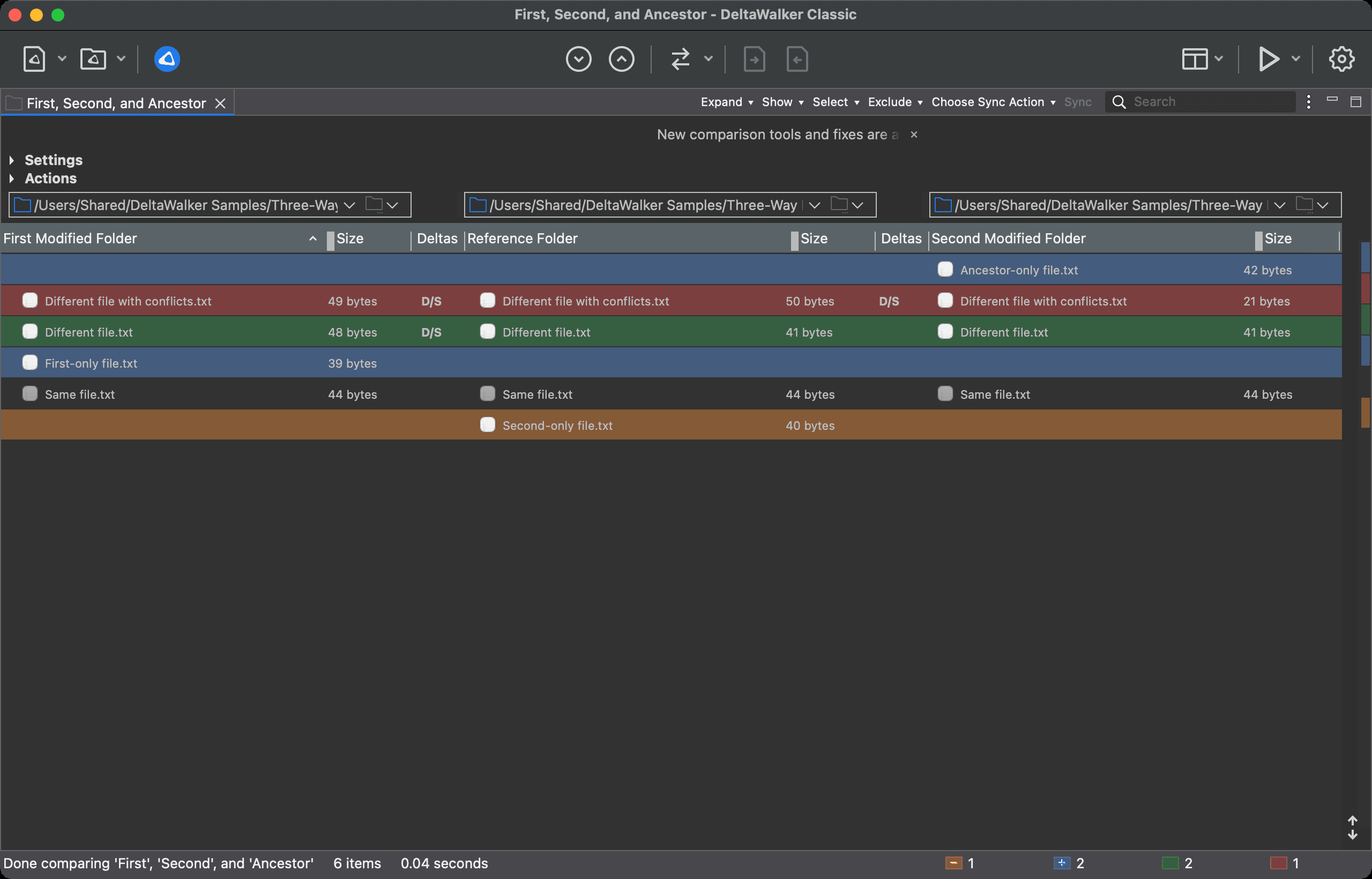
The after screenshot below shows the result of the automatic synchronization:
- “Different file with conflicts.txt”: its non-conflicting deltas have been merged into the ancestor, and its conflicts are left for you to resolve.
- “Different file.txt”: the change has been merged into the ancestor.
- “First-only file.txt” and “Second-only file.txt” have been copied to the ancestor folder.
- “Ancestor-only file.txt” has been deleted from the ancestor folder.
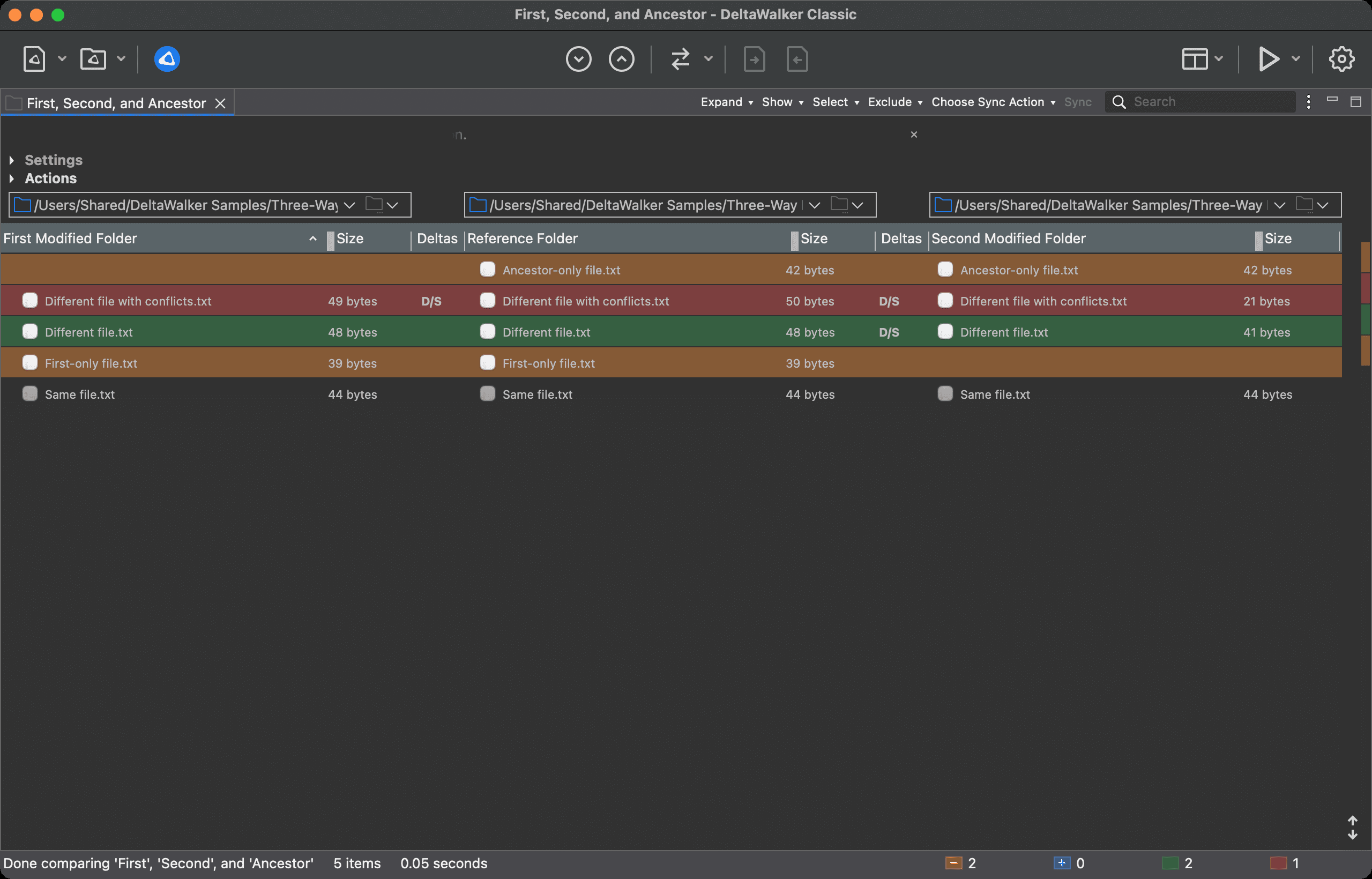
The following rules govern automatic synchronization in DeltaWalker Classic:
- A file changed in only one branch, such as “Different file.txt”, is copied from that branch to the ancestor folder. A file changed the same way in both branches is copied as well.
- Added files, such as “First-only file.txt” and “Second-only file.txt”, are copied to the ancestor folder.
- Files deleted in both branches, such as “Ancestor-only file.txt”, are deleted from the ancestor folder as well.
- Files with conflicting changes, such as “Different file with conflicts.txt”, have their non-conflicting deltas merged by the rules of automatic merging in three-way file comparison; their conflicts are left for you to resolve.
- If a file is missing from the first or the second branch while the other two versions differ, the triplet is a conflict that cannot be merged automatically; you resolve it by hand.
Automatic synchronization applies to the selected files and folders. If nothing is selected, it applies to every delta in the comparison.
All changes made by automatic synchronization take effect immediately and cannot be undone. To make sure you don’t lose data, back up the entire ancestor folder first.