Skip to Content
SettingsGeneralGeneral

General

Find it under Settings > Application > General.

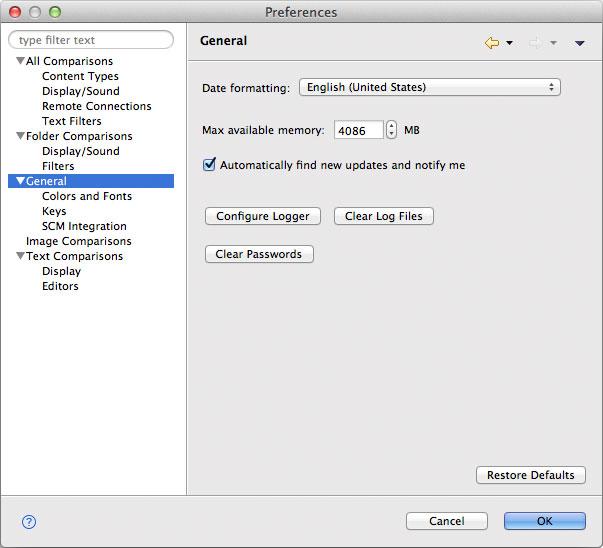
The General page holds the settings of DeltaWalker Classic as a whole: how it looks, how much memory it may use, what it starts with and remembers, how it tells you things, and a few housekeeping buttons.

Setting Description Default
Theme The look of the application: Light, Dark or Auto (use OS theme), which follows the appearance of the operating system. A change takes effect after DeltaWalker Classic is restarted. Auto (use OS theme)
Date formatting The locale DeltaWalker Classic uses to format dates and times, for instance in the Date Modified column of a folder comparison. English (United States)
Memory The most memory DeltaWalker Classic may use. Drag the slider to change it; a change takes effect after DeltaWalker Classic is restarted. A quarter of the computer's memory
Show toolbar item labels Shows the name of every toolbar button below the button. When off, the names are shown only for the first few times DeltaWalker Classic starts, to help you get acquainted with the buttons. Off
Launch most recent comparison(s) on startup When on, the most recent file and/or folder comparison(s) are loaded and run automatically when DeltaWalker Classic starts. On
File and folder comparison history size How many comparisons, or sessions, DeltaWalker Classic keeps in its history. 20
Show intro alerts in new comparison windows When on, a new comparison window shows a thin panel at the top with suggestions of how to go about selecting what to compare. Turn this off here or simply click the close button of such a panel to stop seeing it. On
Play sound with important alerts When on, DeltaWalker Classic plays a sound together with alerts that need your attention. On
Automatically download new updates and notify me When on, DeltaWalker Classic checks for new versions when it starts, downloads them and notifies you. The result is the same as that of choosing Help > Check for Updates. The Mac App Store edition does not have this setting: the App Store updates it. On
Configure Logger Click this button to choose the DeltaWalker Classic components that log at the INFO level. You may be asked to do this when you contact support.  
Clear Log Files Click this button to delete the log files of DeltaWalker Classic, after you confirm.  
Clear Passwords Click this button to make DeltaWalker Classic forget every password it has stored, after you confirm.  

The page

The General page of the Settings window

Pages under General

  • Keys: the keyboard shortcuts.
  • Content Types: how files with certain extensions are treated.
  • SCM Integration: use DeltaWalker Classic from your source control system.
  • Trusted Paths: the folders the Mac App Store edition may access.

See Also

Last updated on