Workflows
A workflow is a ready-made script for an everyday job, such as verifying a backup, finding photos that were never copied, or comparing three versions of a folder. You pick one, fill in the folders it should look at, and run it. You don’t have to write any JavaScript, and you can open any workflow’s source to read it, change it, and learn from it.
Workflows come with DeltaWalker Classic. Each one is described in the file scripts-metadata.json in the samples/scripting/javascript folder of the installation: its title, what it does, its category, how hard it is to follow, how much it can change on your computer, and the settings it asks for. DeltaWalker Classic reads that file to build the Workflow Gallery and the Workflows menu.
Workflows are part of DeltaWalker Classic Standard, Pro, and Oro, and of the trial. Writing and running scripts of your own is part of Pro, Oro, and the trial; see Scripting DeltaWalker Classic. DeltaWalker Classic Free and the Mac App Store edition have no workflows, no Workflows toolbar button, no Script menu, and no Workflow Gallery card on the Welcome page.
Where to find workflows
-
The Workflows button on the main toolbar. Click the button itself to open the Workflow Gallery. Click the arrow next to it to open a menu with:
- the workflows you ran or opened most recently, up to ten, newest first, followed by a separator;
- six featured workflows: Protect Photos…, Verify Backups…, Organize Downloads…, Find Missing Files…, Clean Up Desktop…, and Mirror Folder Safely…, followed by a separator;
- Open Workflow Gallery…, New Script…, and Open Script….
Choosing a workflow in this menu runs it. If the workflow has settings, the Configure Workflow dialog opens first.
-
File > Script > Workflows is the same menu. File > Script > Workflow Gallery… opens the gallery directly.
-
The Welcome page has a Workflow Gallery card. See Welcome Page.
Workflow Gallery
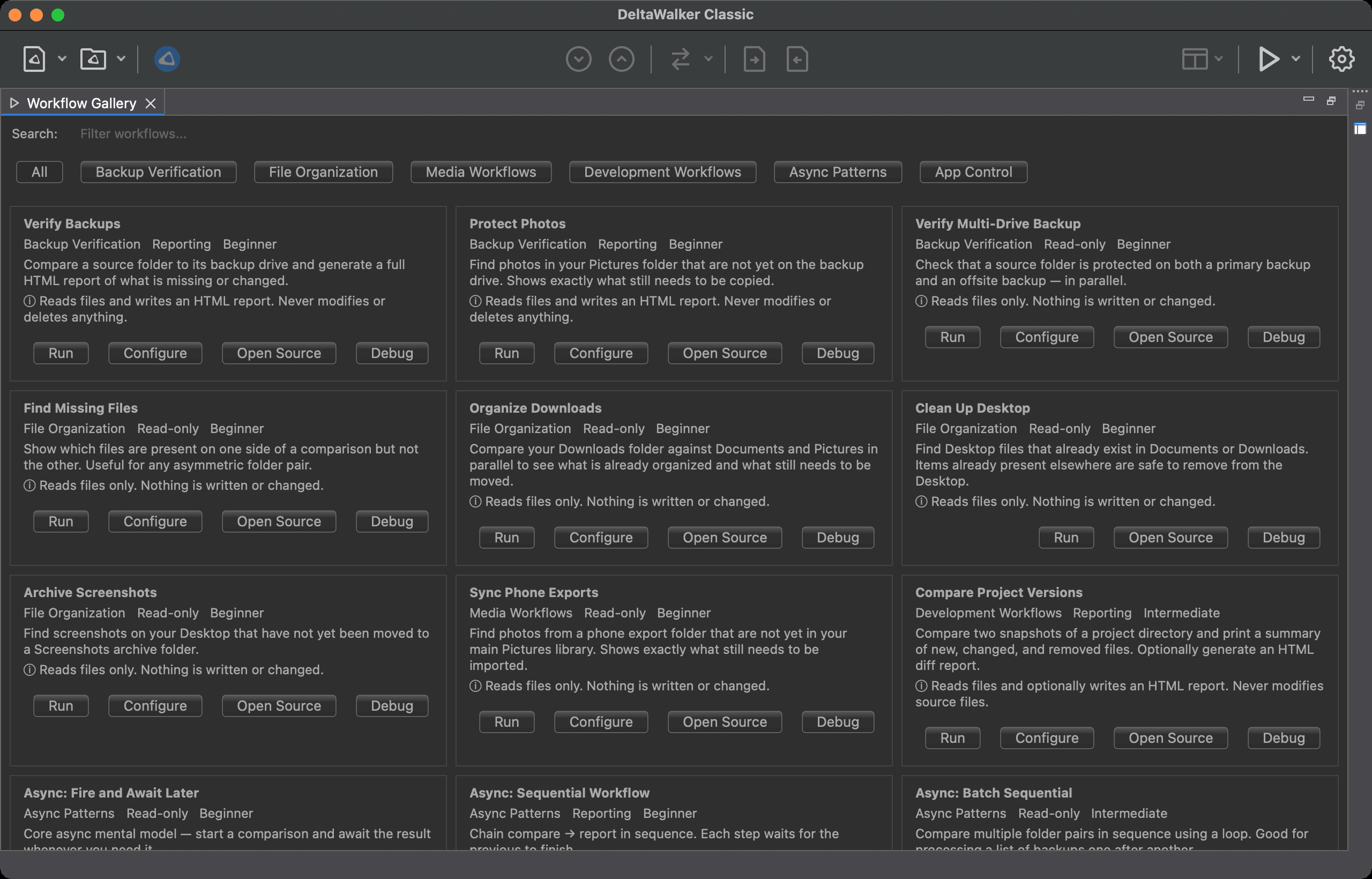
The Workflow Gallery is a view with one card for each workflow.
- Search filters the cards as you type. It looks in each workflow’s title, description, and category, and ignores capitalization.
- The category buttons below the search field narrow the cards to one category. All shows every workflow. The categories are Backup Verification, File Organization, Media Workflows, Development Workflows, Async Patterns, and App Control.
- Each card shows the workflow’s title, three small labels (its category, its safety level, and its difficulty: Beginner, Intermediate, or Advanced), a description, and a note about what the workflow does to your files. The card is tinted by safety level: green for Read-only, blue for Reporting, and yellow for Can modify.
At the bottom right of each card are these buttons:
| Button | What it does |
|---|---|
| Run | Runs the workflow. If it has settings, the Configure Workflow dialog opens first; Cancel there runs nothing. The Script Editor does not open. |
| Configure | Appears only on workflows that have settings. It opens the same Configure Workflow dialog and, after OK, runs the workflow. |
| Open Source | Opens the workflow’s script in the Script Editor without running it. Use it to read the script, change it, or save your own copy. |
| Debug | Opens the script in the Script Editor and runs it there, so that breakpoints and debugger statements can pause it. If the workflow has settings, the Configure Workflow dialog opens first. See Script Editor and Debugger. |
If no workflow matches the search and the category you chose, the gallery says No workflows match the current filter.
Safety levels
The safety level tells you what a workflow can do to your files before you run it. The card’s note repeats it in the workflow’s own words.
| Level | What it means |
|---|---|
| Read-only | Reads files and folders and shows what it found in the Console. It writes nothing and changes nothing. |
| Reporting | Reads files and folders and writes a report, usually an HTML file whose location you choose. It does not change the files it compares. |
| Can modify | Can copy, merge, or otherwise change files. Read the card’s note and the script before you run it. |
The safety level is a description written by the workflow’s author, not a restriction that DeltaWalker Classic enforces. A script that you edit can do more than its card says.
Configure Workflow dialog
The dialog is titled with the name of the workflow. It shows the workflow’s description, then its safety note in a warning color, then one row for each setting. Click OK to run the workflow with the values you entered, or Cancel to run nothing. The dialog can be resized.
Each setting has a label ending in a colon, and the control depends on the kind of setting:
- Folder and file settings are a text field with a Browse… button. For a folder, Browse… opens a folder chooser. For a file, it opens a file chooser, which can pick only a file that already exists; to name a file that doesn’t exist yet, such as a new report, type its path in the field.
- A checkbox setting is a check box. It starts unchecked unless the workflow says otherwise.
- A dropdown setting is a list from which you choose one of the workflow’s options.
- Text and number settings are plain text fields. A number setting that doesn’t contain a number is replaced with 0.
The fields start with the values from the const lines of the workflow’s script, where it has them; a field can start empty. Leading and trailing spaces are removed from what you type.
How the script receives the values
Inside the script, each value is available as workflow.<id>, where <id> is the name of the setting. For example, workflow.SOURCE is the folder entered for the setting named SOURCE. The values are text; a checked checkbox gives "true" and an unchecked one gives "false".
The workflows that come with DeltaWalker Classic keep their settings in const lines near the top of the script, for example const SOURCE = ...;. For a run, DeltaWalker Classic puts your values into those lines in memory. The file on disk is never changed by the dialog.
When a setting has no effect
A setting changes a run only if the workflow’s script reads it. In this release not every workflow does. For example, in Verify Backups the Source Folder and Report File you enter are used, but the backup location is still the one written in the script. So check the folders a workflow prints at the start of its output in the Console. If they are not the ones you chose, click Open Source, change the paths in the const lines at the top of the script, and run it from the Script Editor.
Where the output goes
A workflow reports what it finds in the Console. When you click Run or Configure, the Console opens by itself, and it is cleared each time a script starts. Workflows that write a report also save it to the file named in their settings. Open the Console again with Window > Show Console.
The workflows that come with DeltaWalker Classic
These are all the workflows in the gallery, in the order the category buttons list them.
Backup Verification
| Workflow | What it does | Safety |
|---|---|---|
| Verify Backups | Compares a source folder with its backup drive and writes an HTML report of what is missing or changed. | Reporting |
| Protect Photos | Finds photos in your Pictures folder that are not yet on the backup drive, and shows what still needs to be copied. Writes an HTML report. | Reporting |
| Verify Multi-Drive Backup | Checks that a source folder is protected on both a primary backup and an offsite backup, comparing the two in parallel. | Read-only |
File Organization
| Workflow | What it does | Safety |
|---|---|---|
| Find Missing Files | Shows which files are on one side of a folder comparison but not the other. Useful for any pair of folders that should match. | Read-only |
| Organize Downloads | Compares your Downloads folder with Documents and Pictures in parallel, to show what is already organized and what still needs to be moved. | Read-only |
| Clean Up Desktop | Finds Desktop files that already exist in Documents or Downloads, and so are safe to remove from the Desktop. | Read-only |
| Archive Screenshots | Finds screenshots on your Desktop that have not yet been moved to a Screenshots archive folder. | Read-only |
| Mirror Folder Safely | Compares two folders in both directions, lists each difference, and can optionally synchronize them. As shipped, the synchronizing steps are commented out, so the workflow only inspects until you edit the script. | Can modify |
Media Workflows
| Workflow | What it does | Safety |
|---|---|---|
| Sync Phone Exports | Finds photos in a phone export folder that are not yet in your main Pictures library, and shows what still needs to be imported. | Read-only |
Development Workflows
| Workflow | What it does | Safety |
|---|---|---|
| Compare Project Versions | Compares two snapshots of a project folder and prints a summary of new, changed, and removed files. Can also write an HTML report. | Reporting |
Async Patterns
The seven workflows whose titles begin with Async: are learning samples for scripts that wait for comparisons, run several at once, or handle errors. The category also holds examples of three-way synchronizing and merging, remote folders, filters, and printing. Open a workflow’s source to see how it is written.
| Workflow | What it does | Safety |
|---|---|---|
| Async: Fire and Await Later | Starts a comparison and waits for the result only when the script needs it. | Read-only |
| Async: Sequential Workflow | Compares two files, then writes an HTML report, each step waiting for the one before. | Reporting |
| Async: Batch Sequential | Compares several pairs of folders one after another in a loop. | Read-only |
| Async: Parallel Compare | Runs several comparisons at the same time with Promise.all, so the total time is that of the slowest one. | Read-only |
| Async: Error Handling | Uses try/catch to handle comparison errors and other failures. | Read-only |
| Async: Mixed Orchestration | Runs comparisons in parallel, then writes the reports one after another. | Reporting |
| Async: Compare and Report Helper | Wraps a comparison and its report in a function that any script can reuse. | Reporting |
| Three-Way Folder Sync | Compares three versions of a folder at once and synchronizes the changes that don’t conflict. These operations modify files. | Can modify |
| Remote Folder Compare | Compares a local folder with a folder on an FTP or SFTP server. | Read-only |
| Folder Compare with Filters | Applies path filters to a folder comparison, to focus on certain file types or subfolders. | Read-only |
| Three-Way Text Merge | Compares three versions of a text file, merges every block that doesn’t conflict, and saves the result to a new file. The original files are not modified. | Can modify |
| Text Compare, Print and Report | Compares two text files, then prints the comparison to PDF (macOS) and writes an HTML report. | Reporting |
The Async: samples, Text Compare, Print and Report, and Mirror Folder Safely compare the sample files and folders that come in the samples folder of the installation: f0, f1, f2, q0.txt, q1.txt, and q2.txt. The scripts expect them in a test/samples folder inside your home folder. Copy them there, or click Open Source and point the script at your own files, before you run these workflows.
Five text-comparison examples print the number of deltas with a call that text comparisons don’t have: Async: Fire and Await Later, Async: Sequential Workflow, Async: Error Handling, Async: Compare and Report Helper, and the third comparison in Async: Parallel Compare. In these, the comparison finishes and then the Console shows an error instead of the count. In Async: Sequential Workflow that happens before the report is written; in Async: Error Handling the script’s own catch prints it. To count the deltas of a text comparison in your own scripts, use getAllDeltas().length.
App Control
| Workflow | What it does | Safety |
|---|---|---|
| App Window Control | Resizes, maximizes, and repositions the DeltaWalker Classic window, which is useful for scripted layouts. It doesn’t read any files. | Read-only |
Appearance